Airbnb · Short-term rental

Airbnb welcome book for your rental

No more re-typing the door code into every check-in message. Write it once in the Welcome field, send guests the short link with the booking, and they see how to get in — door code, key box or which lift to take — plus Wi-Fi, house rules, check-out, nearby tips, contact and the map. Change something, the QR code on the poster stays the same.

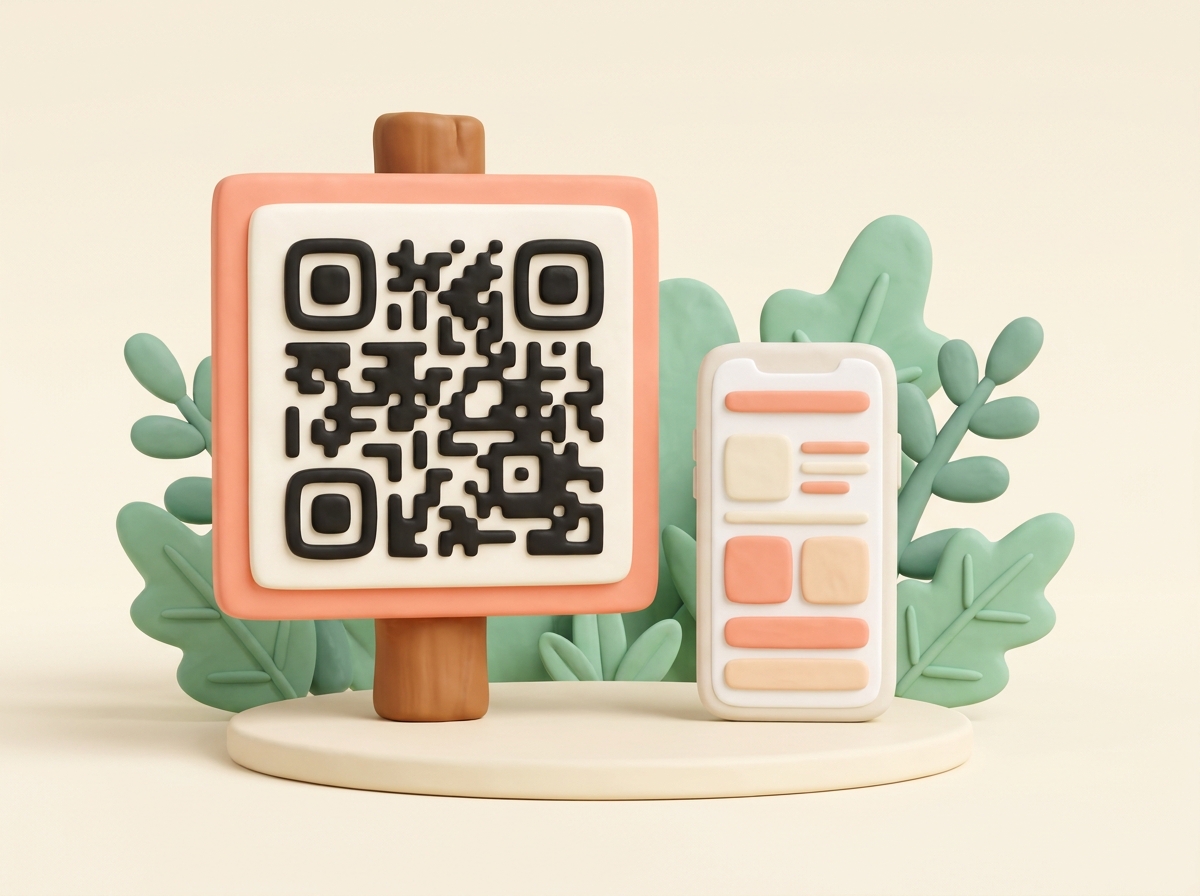
Phone showing a mini website, next to a small sign with a QR code

How to get in

Door code, key box or lift — you write it in the Welcome field.

Wi-Fi to copy

Network name and password, large on the phone.

Free

No time limit, no subscription.

No account

Just your email to confirm, no password.

What we store

No account. See the privacy policy.

Templates, not AI

You fill in the fields, nothing is AI-generated.

Designs

A design that suits your place

From luxe to minimal. You set the colors of your interior in the next step — a background and an accent are enough.

See all 16 designs →

What's in the welcome book

Check-in

Door code, key box, which lift to take — you write the steps into the Welcome field. Send guests the short link with the booking, and they read it before they're at the door.

Wi-Fi

Network name and password are large on the mini website. The password can be copied instead of typed from a slip of paper.

House rules

A list you write: quiet hours, bins, shoes. Whoever scans sees the list.

Check-out

The time, then the steps after it. Dishes, windows, keys — you fill in whatever applies to your place.

Nearby tips

A bakery, the beach, bike hire — as buttons. You set the links.

Contact

Phone and/or WhatsApp — at least one. Guests can reach you directly.

Map

The address and a map, so guests can find the rental.

The QR code on a poster

A binder doesn't fit in a frame on the wall. A QR code does. Print the poster and put it in the rental — on the door, on the counter, next to the router.

You get the address, QR code and poster after you click the confirmation link in the email. Publishing alone doesn't make the mini website live yet.

The template is called Guest folder. The fields are already in the order guests read them.

Changed something? Same address, same QR code

A new Wi-Fi password, a different check-out time, a new tip: you edit the mini website through the edit link in the email. The address stays. The QR code on the poster stays. You don't reprint.

That's how the welcome book stays current without swapping the poster.

Is the welcome book template free?

Yes. The Guest folder template already has the fields a welcome book needs: Welcome, Wi-Fi, house rules, check-out, tips, contact and the map. No account, no subscription.

Who fills in the welcome book?

Just you. Guests scan the QR code and read how to get in, Wi-Fi, house rules, check-out, tips, contact and the map. They don't write anything back, and they don't add photos.

How do guests get the door code?

You write it into the Welcome field — the door code, where the key box is, or which lift to take. Send guests the short link in your check-in message and they read it before they're at the door — or they scan the QR code on the poster. There's no separate door-code field; Welcome covers it.

Who can see the Wi-Fi password?

The mini website is public: anyone with the address can see the Wi-Fi password too.

When do I get the QR code?

You click Publish. An email with the confirmation link follows. Only clicking it makes the mini website live. Then you have the address, the QR code and the poster to print.

Can I change it later?

Yes, through the edit link in the email. The address and the QR code stay the same.
Your welcome book in 4 steps

1

Pick a design

One of 16, in your two colors.

2

Fill in the fields

Welcome with the door code, Wi-Fi, house rules, check-out.

3

Confirm by email

One click — then you have the address, QR code and poster.

4

Frame the poster

Print once. Edits keep the same QR code.

Other templates

A QR code for something else?

Museum or garden QR code

A plaque at a landmark — with history, photos, and a map behind it.

Make a QR plaque →

A QR code with information

Need a QR code that shows more than a link? Build a mini website behind it.

See the templates →

Wedding order of service

Running order, hymns, readings — a printed programme card with a QR code behind it.

Make an order of service →

Wedding program

Ceremony order, readings, songs — a printed program card with a QR code behind it.

Make a wedding program →

Funeral order of service

Running order, hymns, tribute — a printed programme card with a QR code behind it.

Make a funeral order of service →

Funeral program

Ceremony order, readings, tribute — a printed program card with a QR code behind it.

Make a funeral program →

Wedding website template

Schedule, directions and hotel on one mini website — in your design, with a QR code.

Make a wedding website →

Linktree alternative

All your links behind one QR code — free, no account, with a poster to print.

Collect your links →

QR code for a YouTube video

Paste the video link into the Links field — the QR code opens a button that plays it.

Make a video QR code →